Onthel Purwodadi Gear Upgrades: Bonuses and How to Apply
Last updated:
Choose a Gear upgrade for your speed goal, then buy and save it through a bicycle modification menu.
Quick answer
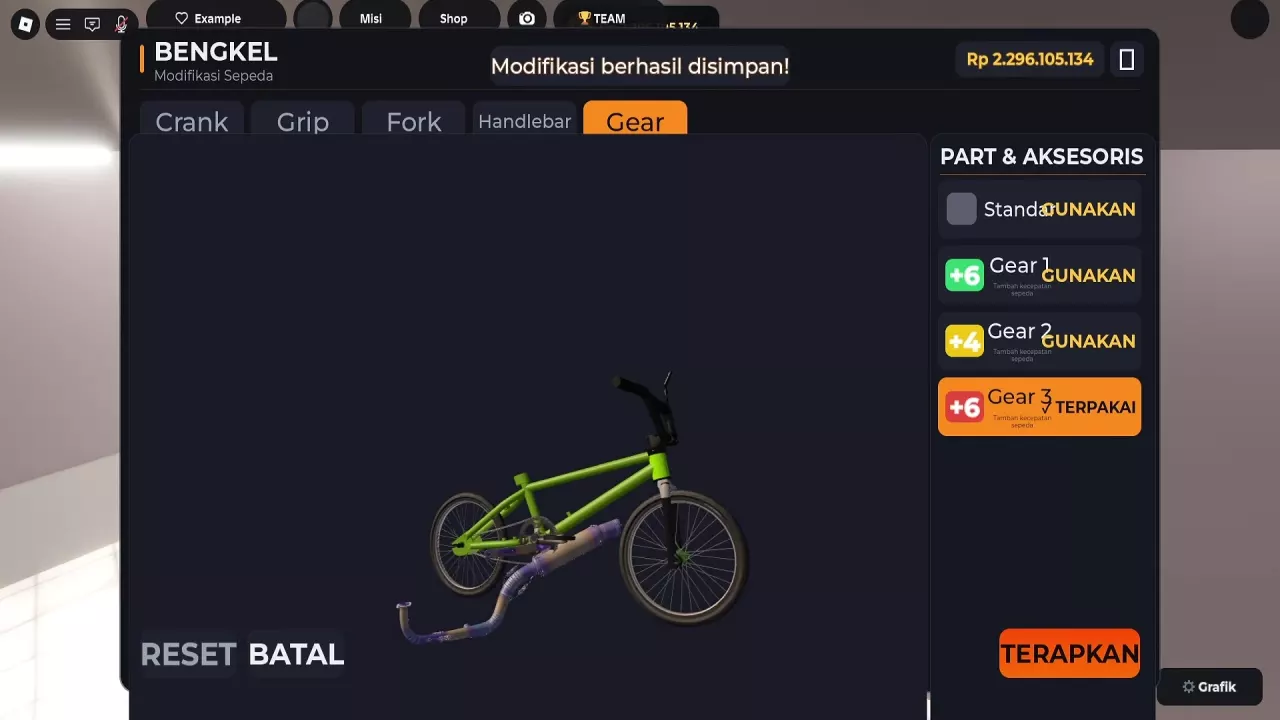
By the Bengkel menu’s displayed bonuses, Gear 1 and red Gear 3 tie at +6, ahead of Gear 2 at +4. Select your Gear and save it with TERAPKAN or APPLY. Gear 4 can be purchased with BELI in Vehicle Modification.
Choose Gear by the Displayed Bonus
For a speed-focused choice, prioritize Gear 1 or Gear 3: both display +6 in the Bengkel Gear menu, while Gear 2 displays +4. Gear 3 is the red option. The +6 options are tied by this menu label; the number is not identified as a KM/H increase.
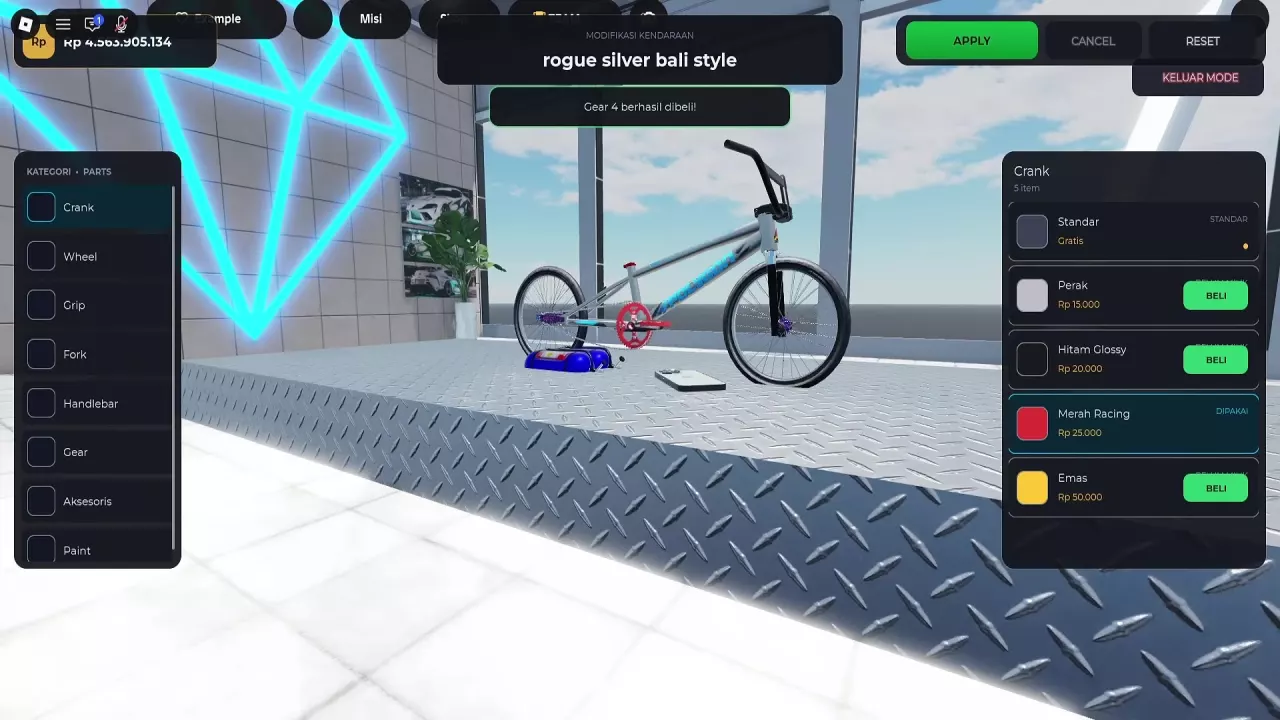
Gear 4 is available through BELI in Vehicle Modification, including while modifying rogue silver bali style.
Buy and Apply a Gear Upgrade
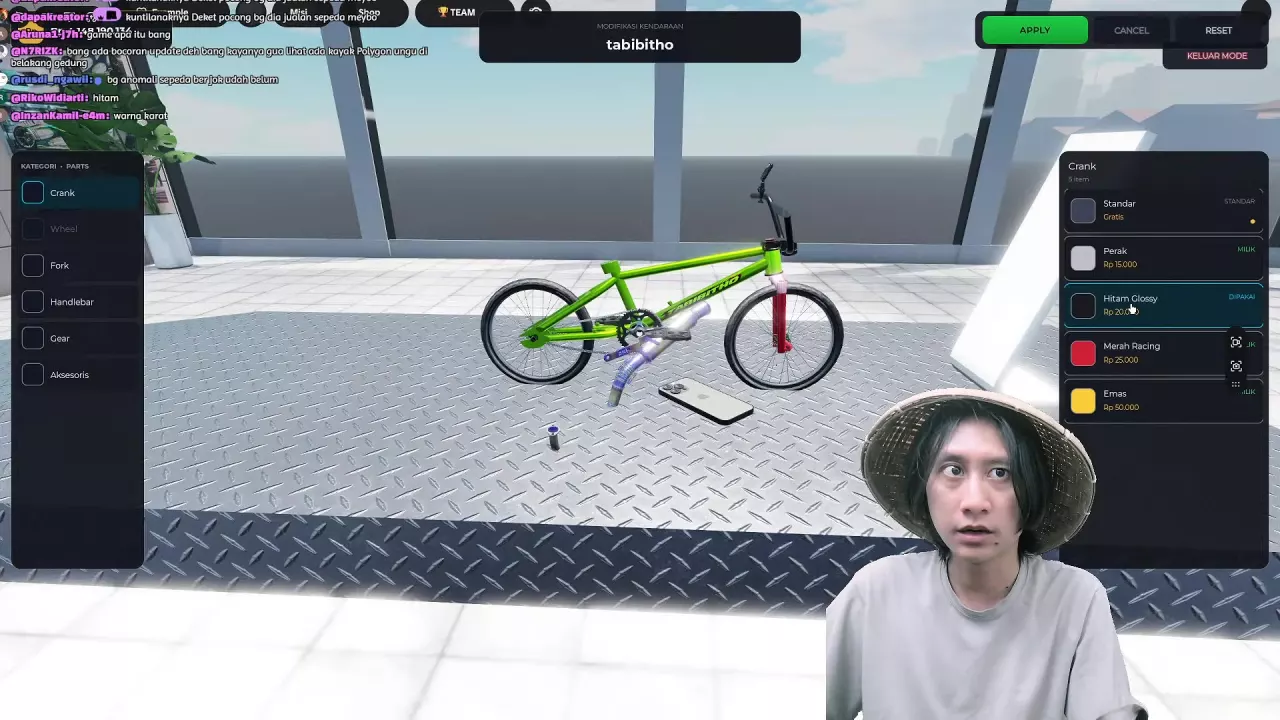
- Open a modification menu. At ModShop, use Buka Modif at Bengkel Modif. At Vehicle Modification, approach the entrance and press E at Modify Vehicle.
- Choose the bicycle you want to modify if prompted, then open Gear.
- If the option needs to be purchased, use BELI and have enough in-game currency for it.
- Select the Gear you want to use. In Bengkel, TERPAKAI marks the option in use; the red Gear 3 is one selectable +6 option.
- Save with TERAPKAN in Bengkel or APPLY in Vehicle Modification. Look for the modification-saved confirmation.
Buying an option and saving the selected modification are separate actions.
Gear, Styling Parts and Speed Boost
For a speed budget, prioritize a Gear option with an explicit speed bonus. Set aside a separate amount for paint, colored parts and accessories according to the look you want. Add the prices of the items you still need to buy; see the bike customization guide for a parts-budget example.
Speed Boost is a separate shop product priced at 79 Robux and described as substantially increasing vehicle speed. Keep that Robux purchase separate from your in-game Rp budget. See game passes and shop messages for its shop listing.
Reading the 99 KM/H Road-Test Example
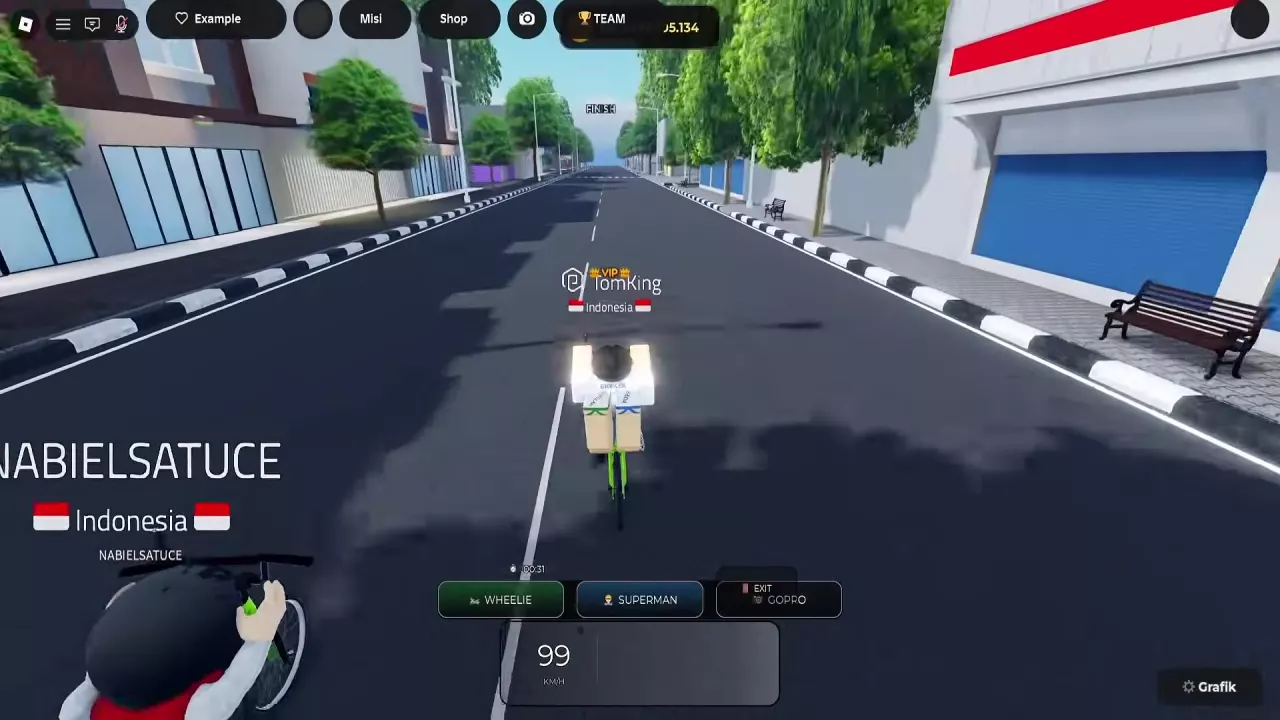
In one two-rider road test, the speedometer reached 99 KM/H after accelerating, described as approximately 100 KM/H. The riders also described one bicycle going from about 88 KM/H to about 100 KM/H after modification.
Those readings describe the particular rides and setup, rather than a fixed speed cap or a guaranteed increase from one Gear. When comparing bikes for speed, consider the bicycle and its upgrades together; a price or SPORT+/LIMITED category alone is not a top-speed rating.